Screen Machines

What are Screen Machines?

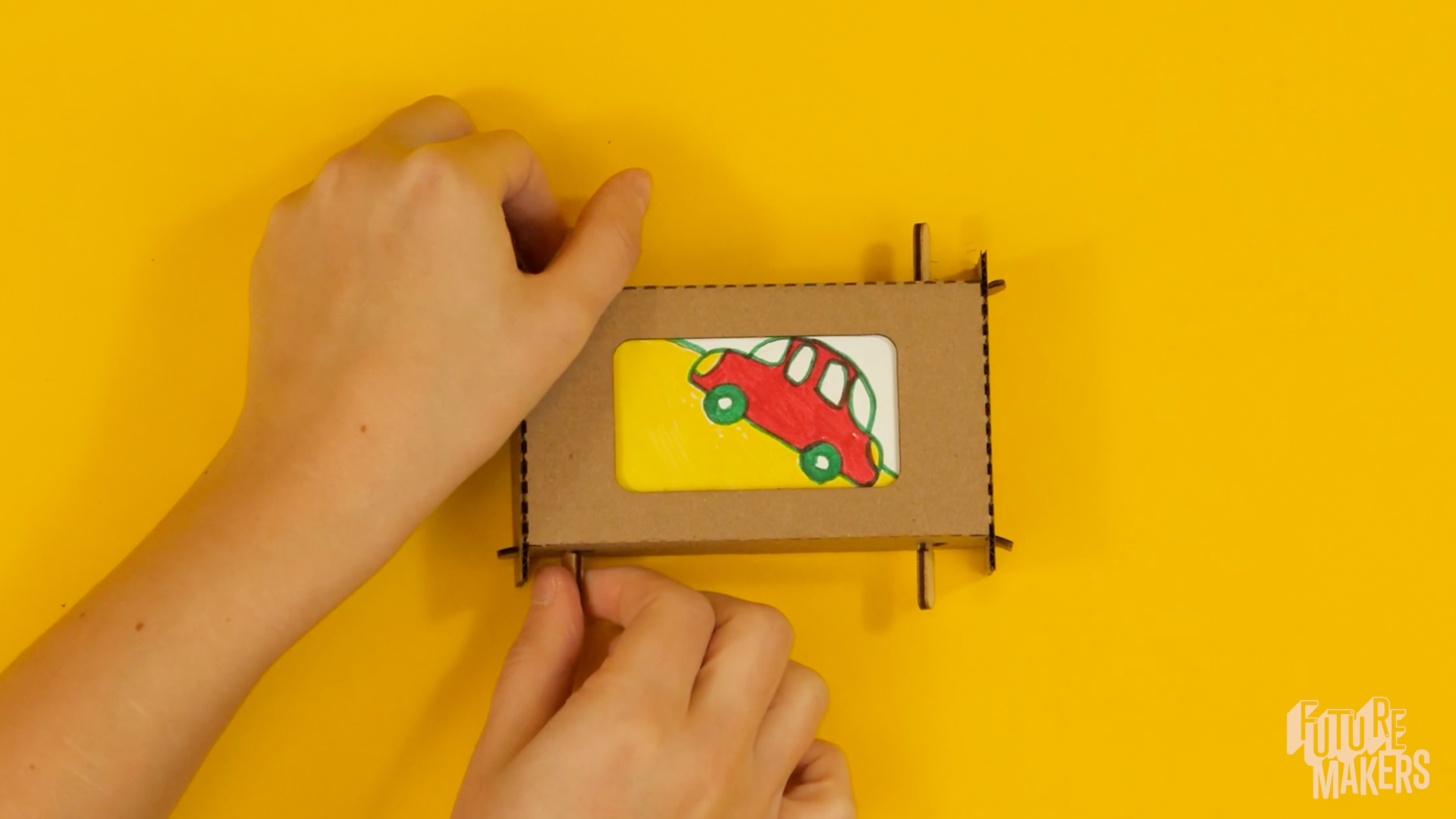
Bring illustrated stories to life with a cardboard scrolling machine! Learners snap together a frame, cut their own paper scrolls, plan a beginning-middle-end sequence on a design worksheet, then draw their story across a strip and install it between two wooden handles. Turn the handle and the scroll unrolls like a tiny movie — horizontal like a screen, vertical like a phone, collaborative with friends, or extended with extra strips. This Spark is where storytelling meets engineering.

Time Needed:
15-40 minutes. 20 minutes as a quick-build activity station; 60 minutes for a full classroom build with story-planning and iteration.
Grade Level:
Grade K and up
Navigate to
Jump to a section

Overview

Screen Machines teach narrative structure through a simple hand-cranked animation device. Each learner receives a laser-cut cardboard frame, a printed guide and story strip sheet, a pair of wooden scroll handles, and a reclosable bag. Using only scissors and drawing materials, they assemble a working scrolling machine and fill it with an original story.

The build follows eight steps: explore the materials, fold the cardboard frame into a screen, cut the printed sheet into four blank scroll strips, plan a story on the design worksheet, draw the sequence on a strip, thread the strip through both wooden handles, install the scroll in the frame, and set the finished machine on its fold-out stand. Learners then iterate with extensions — collaborative stories where one learner starts and another finishes, passed-along stories with surprise endings, or extra scrolls printed from the free website template.

Along the way, learners practice the first/next/last structure of storytelling, the WHO/WHERE/WHAT of character and setting, and the engineering idea that the direction a scroll moves (up, down, left, right) can be part of the story's meaning.

Materials

Each learner recieves
  • A laser-cut cardboard frame (with a center piece that becomes the stand)
  • A printed guide and story strip sheet (scored into four blank scroll strips around a central instruction panel)
  • A pair of wooden scroll handles (snaps apart into two)
  • A reusable reclosable bag
What you need to provide

Scissors for cutting the printed sheet into scroll strips.

Pencils for sketching story ideas before committing to color.

Markers or drawing materials for illustrating the final story across the scroll.

Optional resources
  • Story design worksheet (free printable on the FutureMakers website) — helps learners plan a character, setting, and action before drawing
  • Blank scroll strip printable (free on the FutureMakers website) — for making extra scrolls when learners run out
  • Extra blank paper for learners who want a second try, a longer story, or more scrolls
  • Glue stick or tape for extending a story across multiple scroll strips in the collaborative and pass-the-story extensions
  • A quiet desk surface so finished Screen Machines can stand upright on their fold-out stands for sharing and display

Key Challenges

  1. Build a working scrolling machine from flat cardboard. Learners fold the perforated frame, lock the tabs into slots, and assemble a rigid screen that holds the paper scroll.
  2. Plan an original story sequence. Use the story design worksheet to answer WHO, WHERE, and WHAT — then translate those ideas into a beginning, middle, and end across a paper strip.
  3. Translate the plan into a drawn scroll. Transfer ideas to the scroll strip in pencil first, leaving blank space at each end so the opening and closing frames aren't hidden by the handles.
  4. Thread and install the scroll. Loop the strip through the slots in each wooden handle, tighten it like a strap in a buckle, then insert the handles into the frame's oval holes and rotate them into their slots.
  5. Make it unique. Every Screen Machine should tell a different story. Design for horizontal or vertical scrolling, collaborate with a neighbor, or extend a single strip into an epic with unexpected endings.

Learner Goals

MUST
  • Fold the cardboard frame and lock the tabs into the slots to form a rigid screen.
  • Cut the printed sheet into four blank scroll strips along the dashed lines.
  • Plan a simple story sequence with a beginning, middle, and end.
  • Draw that sequence across a single scroll strip, leaving blank space at each end.
  • Thread the scroll through both wooden handles and install it in the frame.
  • Turn the handles to watch the completed story scroll across the screen.
SHOULD
  • Describe their story in terms of what happens first, next, and last — the basic three-beat structure of narrative.
  • Use the story design worksheet's WHO, WHERE, and WHAT prompts to identify a character, setting, and action before drawing.
  • Choose whether the story scrolls horizontally (like a movie screen) or vertically (like a phone) and explain why that direction fits their story.
  • Troubleshoot a scroll that shows blank by removing it, re-rolling it, and reinstalling it so the illustration faces out.
COULD
  • Design a collaborative story where one learner illustrates the beginning and another continues it — splitting authorship across two or three strips joined with glue or tape.
  • Pass a story along at the table — one learner draws frame one, another draws frame two, a third draws the ending. Surprise twists are encouraged.
  • Print extra scroll strips from the free template and extend a single story across multiple connected scrolls.
  • Repair a worn handle slot with a couple of pieces of masking tape and keep the Screen Machine running after heavy use.

Extension Activities

  • Collaborative Stories. Split authorship across two or three learners. One draws the beginning, the next draws the middle, and a third draws the ending. Glue the separate scrolls end-to-end into one long strip — surprise handoffs are the whole point.
  • Pass the Story. Start with a shared theme and a single blank strip. One learner draws frame one, passes it to the next, who draws frame two, and so on. The final learner has to make the ending work no matter how strange the middle got. Elements of surprise and unexpected endings are always a great hook.
  • Extend a Story. Glue two or more scroll strips together end-to-end with a glue stick or tape to make a longer, more epic story that can run for many rotations of the handle.
  • Horizontal vs. Vertical Redesign. Challenge learners to retell the same story twice — once as a horizontal scroll and once as a vertical scroll. Which direction works better for which kind of action? Why?
  • Out of Scroll Strips? The FutureMakers website hosts a free printable blank scroll strip template. Print more strips and keep the stories coming long after the first four are used up.
  • Story Gallery. Set up all finished Screen Machines on their stands on one desk as a mini film festival. Each learner takes a turn cranking someone else's story and guessing what happens next before it unrolls.

Step-by-Step Guide

Pre-Activity Questions
Grades K-2
  1. What's your favorite story? Can you tell us what happens first, next, and last?
  2. Have you ever seen a movie or a cartoon? How do you think the pictures on the screen move?
  3. If you could make a story with just three pictures, what would those pictures show?
Grades 3-5
  1. How does a story change depending on whether the picture scrolls up, down, left, or right?
  2. What's the difference between a story you read and a story you see?
  3. If you had to tell a whole story in three drawings, what would make someone care about the ending?
Grades 6-8
  1. Before film, people used simple mechanical devices like zoetropes and flip-books to show moving pictures. How do you think those worked?
  2. How does the direction a story moves (horizontal like a movie, vertical like a phone) change how you feel about what's happening?
  3. What's the difference between a strong narrative and a random sequence of images? What makes a story a story?
Pro Tips
  • Work the perforations first. Gently bend every crease on the frame before trying to lock the tabs into slots. A loose frame pops together in seconds; a stiff one fights back and makes learners frustrated on the very first step.
  • Plan before you draw. The best stories start with a plan. Have learners fill out the story design worksheet — or at least answer WHO, WHERE, and WHAT out loud — before a single pencil mark goes on a scroll strip.
  • Pencil first, marker second. Sketch the whole story in pencil before committing with markers. Erasing a pencil mistake is easy; erasing marker is not. This one habit saves the most frustration.
  • Leave blank space at the ends. Remind learners there are faint marks at each end of the scroll strip — anything drawn past those marks will be hidden by the wooden handles or the frame edge.
  • Illustration faces out. When threading the scroll through the handle slots, the art must face outward, not toward the inside of the roll. Getting this wrong is the #1 first-try mistake — and the fix is just to re-roll.
  • Two hands, one handle. It's much easier to use two hands on the same scroll handle than to try turning both handles at once. Show learners the two-hands-one-handle grip from the start.
  • Keep your example simple. When making your educator demo, pick a very plain three-beat story — a sun rising, a ball bouncing, a car driving up a hill. Simpler demos free learners to out-create you, which is exactly what you want.
  • Make your example before class. Watch the educator video and build your own Screen Machine before learners arrive. You'll catch every fiddly bit and know which steps to slow down on.
  • Save the instruction card. When you cut the printed sheet into strips, fold the instruction panel back into the bag. Learners can take it home and show family how their machine works.
  • Masking tape saves slots. If a handle slot is worn or the strip keeps slipping, a couple of pieces of masking tape wrapped around the handle refresh the grip and buy the Screen Machine another week of stories.

Step 1: Explore Your Materials

Question: What pieces do you see in your bag? What do you think each one does?

  • Open the reclosable bag and lay out every component: the laser-cut cardboard frame, the printed guide and story strip sheet, and a pair of wooden scroll handles.
  • Ask learners to identify each part before you name it. What's the big cardboard piece? What's the paper with dashed lines? What about the wooden sticks?
  • Remind them they'll also need scissors and pencils or markers — those aren't in the kit.
  • Tell learners upfront that this project will belong to them when they're done. Ownership boosts engagement.
  • Point out that the paper sheet is both the instruction guide and the raw material for their scrolls — a clever piece of design they'll cut apart in a few steps.

Step 2: Fold the Frame

Question: How can you turn this flat piece of cardboard into a rigid screen that holds a scroll?

  • Remove the center piece from the cardboard frame and set it aside — that piece becomes the stand in a later step, so don't lose it.
  • Gently bend each side along the perforations, back and forth, to loosen the folds before assembling. This makes the final pop-together much easier.
  • Fold the long sides up together so the tabs face outward. Then lift one short side, angle it, and push the tabs into the slots. Repeat on the other end so all four sides are connected.
  • If a tab keeps slipping out, bend it slightly sideways to help it lock into the slot.
  • Encourage learners to work the perforations thoroughly before the first fold — a well-loosened frame goes together in seconds; a stiff one fights back.

Step 3: Cut the Scroll Strips

Question: How can one printed sheet become four blank scrolls and still keep the instructions?

  • Unfold the printed guide sheet flat on the desk. Notice the dashed lines running the length of the sheet — those are your cut lines.
  • Cut along the dashed lines, leaving the central instruction panel intact. You'll end up with four blank scroll strips and one instruction card.
  • Fold the instruction card and tuck it back into the reclosable bag for later reference (or for parents at home).
  • Scissor safety: remind younger learners to keep the blades pointed away from their other hand and to cut slowly along the line.
  • Save the extra strips — learners will have four chances to get a story right, or room to try collaborative and extended stories in later extensions.

Step 4: Plan Your Story

Question: Who is your story about? Where does it take place? And what happens?

  • Before anyone draws on a scroll, plan the story. Most educators find this step makes the difference between a rushed doodle and a real narrative.
  • Use the free story design worksheet (linked on the FutureMakers website) to answer three prompts: WHO is the main character? WHERE does it take place? WHAT is happening?
  • Once those three questions are answered, break the action into three beats: What happens first? What happens next? What happens last?
  • Have learners sketch rough thumbnails on the back of the worksheet or on scrap paper before committing anything to a scroll strip. A good plan keeps the drawing phase focused.
  • Also decide the scroll direction now: horizontal like a movie screen, or vertical like a phone? Point out that the direction itself can be part of the story's meaning — things falling down, a balloon rising up, a car driving left to right.

Step 5: Draw Your Story

Question: How do you make sure every frame of your story shows through the screen?

  • Pick one of the four blank scroll strips and transfer the plan to it in pencil first. The pencil lets learners erase and adjust before the story is permanent.
  • Leave blank space at each end of the scroll. There are faint marks at the ends of each strip to help — the wooden handles and the frame will cover those edges, so any drawing in those zones won't be seen.
  • Draw the beginning, middle, and end in order along the strip. Remind learners that every inch of the strip is one moment in time — the story reveals itself as the screen scrolls.
  • Once the pencil sketch looks right, go over it with markers. Keep the linework bold so it reads at a glance when the scroll is moving.
  • If a learner's sketch isn't working, remind them there are three more blank strips. Restarting is part of iterating — don't let anyone get precious about a first draft.

Step 6: Attach the Scroll to the Handles

Question: How does the paper scroll stay locked into the wooden handles — even when you turn them?

  • Start with the pair of wooden handles. Snap the joined sticks apart into two separate handles. Each one has two parallel slots cut into it.
  • Send one end of the scroll strip through the first slot of a handle, with the illustration facing outward. If the art faces the inside of the roll, you'll see nothing but a blank back when you turn the handle — a common first-try mistake.
  • Pull the strip through a few inches, then loop it back through the second slot.
  • Hold the short end in place with one finger, then gently pull on the long piece until the paper tightens in the handle — like a strap in a buckle.
  • Repeat the same process on the other end of the strip with the second handle. When both handles are attached, roll each end up so the strip forms two scrolls ready to install.

Step 7: Install the Scroll in the Frame

Question: How do you lock the handles into the frame so they can spin freely without falling out?

  • Hold the assembled frame and find the two oval holes — one on each long side. These are where the scroll handles go.
  • Insert the end of each scroll handle into its oval hole. One side at a time is easiest.
  • Rotate each handle one-by-one so that the opposite end can be pressed down into the matching slot on the inside of the frame. This locks the handle in place but still lets it spin.
  • When both handles are installed, hold both ends of one handle and turn it — watch the scroll unroll across the screen.
  • If the scroll shows blank, it was installed backwards — remove it, re-roll it with the art facing out, and reinstall. This is the most common first-turn fix.

Step 8: Display Your Screen Machine

Question: Remember that center piece you set aside in Step 2? What could it become?

  • Pick up the cardboard center piece from Step 2 — the small rectangular piece you removed from the frame.
  • Fold it along its perforated lines to create an angled stand shape. The creases should form two short legs.
  • Slot the folded stand into the back side of the frame. The finished Screen Machine now sits upright on the desk with its screen facing the audience.
  • The stand works in two orientations: horizontal for movie-screen stories and vertical for phone-style stories. Match it to the direction the learner chose in Step 4.
  • This is also the moment to celebrate — have learners place their finished Screen Machines in a small gallery on one desk and take turns cranking each other's stories.

Step 9: Iterate!

Question: Your first Screen Machine works — now what could you try with the three blank strips you still have?

  • This is where Screen Machines really come alive. Learners have three more blank strips (plus the option to print more from the free template on the FutureMakers website), so the first finished story is just the start.
  • Encourage learners to try a collaborative story, a passed-along story, an extended-strip story, or simply a second take on their original idea with better pacing. See the Extension Activities section for the full list of variations.
  • Ask learners to share their finished scrolls with a neighbor and explain what happens first, next, and last — storytelling is half the point.
  • If a scroll is getting loose or a handle slot feels worn, show learners the masking-tape fix in Troubleshooting so they can keep their Screen Machine running at home.
Post-Activity Questions
Grades K-2
  1. Can you tell me your story the way you drew it? What happens first?
  2. When you turned the handle, what moved — the scroll or the frame?
  3. What was the trickiest part of making your Screen Machine?
Grades 3-5
  1. Why did we leave blank space at each end of the scroll? What would have happened if you didn't?
  2. If you had to retell your story using a vertical scroll instead of a horizontal one, what would change?
  3. If someone else turned your Screen Machine, would they understand the story? What would make it clearer?
Grades 6-8
  1. Your Screen Machine is a simple mechanical animation device. How is it similar to (and different from) a modern phone screen or TV?
  2. What did you learn about pacing? How many seconds should each frame of a story stay visible?
  3. How could you use multiple scroll strips to tell a longer story — and what problems would you need to solve to join them seamlessly?

Standards & Goals

Common Core ELA Standards

RL.K-2.2 — Retell familiar stories, including key details: Example: Learners retell their Screen Machine story in the correct order, describing what happens first, next, and last as they crank the scroll across the frame — turning the three-beat structure from the story design worksheet into a spoken narrative for a classmate.

SL.K-2.5 — Add drawings to provide additional detail: Example: Learners add drawings to their scroll strip to show what the narrator cannot say out loud — the expression on the character's face, the color of the sky, or the shape of the monster behind the door — using the visual frames of the scrolling story to carry meaning alongside spoken words.

W.3-5.3 — Write narratives to develop real or imagined experiences or events: Example: Learners plan a narrative using the story design worksheet — identifying a main character (WHO), a setting (WHERE), and an action or conflict (WHAT) — then sequence it into a beginning, middle, and end across a single scroll strip, producing a visual narrative with clear event ordering.

SL.3-5.4 — Report on a topic or present an opinion, sequencing ideas logically: Example: Learners present their finished Screen Machine to a classmate while cranking the handle, narrating each frame of the scroll in order and explaining why they chose horizontal versus vertical scroll direction for the story — practicing logical sequencing and reasoning about visual choice.

W.6-8.3 — Write narratives with effective technique, relevant descriptive details, and well-structured event sequences: Example: Learners write a narrative that takes advantage of the Screen Machine's linear, one-way reveal — using pacing, blank frames, and the tension of not yet knowing what comes next to shape the reader's experience — then revise the sequence on a second blank strip after seeing how the first draft scrolls.

SL.6-8.5 — Integrate multimedia and visual displays in presentations to clarify information: Example: Learners use their Screen Machine as a visual display alongside a short spoken narration, synchronizing each turn of the handle with a beat of the story — integrating a hand-operated visual medium with live speech to strengthen their narrative presentation.

Common Core Math Standards

K.G.A.1 — Describe objects using names of shapes and relative positions: Example: Learners describe the cardboard frame's rectangle shape and the oval holes that hold the scroll handles, using positional language like "above," "below," "between," and "next to" as they assemble the frame and install the scroll in the correct slots.

1.MD.A.1 — Order three objects by length; compare the lengths of two objects indirectly: Example: Learners compare the length of their scroll strip to the width of the frame's viewing window, reasoning about how many story frames can fit end-to-end along the strip and how far they must leave blank on each end so the story is not hidden by the handles.

3.MD.B.4 — Generate measurement data by measuring lengths: Example: Learners measure the blank scroll strip in inches and divide it into equal story frames, planning how much of the strip each frame takes up and recording the measurements on the back of the strip before committing pencil marks — turning narrative pacing into a measurement problem.

4.MD.A.3 — Apply the area and perimeter formulas for rectangles in real world problems: Example: Learners calculate the area of the frame's viewing window and the total area of the scroll strip to determine how many story frames (rectangles of drawing) they can fit while still leaving blank margins at each end — applying area reasoning to a real design constraint.

6.RP.A.1 — Understand ratio concepts and use ratio reasoning: Example: Learners reason about the ratio of drawn story length to scroll-strip length, working out what fraction of the strip is covered by usable story area (not hidden by the handles or frame edge) and using that ratio to plan how much of each blank strip is actually available to draw on.

7.G.B.6 — Solve real-world problems involving area of two-dimensional objects: Example: Learners calculate the total drawable area of their scroll strip by subtracting the hidden margins on each end from the full rectangle, then use that area to decide how many equally-spaced story frames they can fit and how much detail each frame can hold.

Next Generation Science Standards (NGSS)

K-2-ETS1-1 — Ask questions, make observations, and gather information about a situation people want to change: Example: Learners ask questions about why the scroll comes out blank on the first try and gather information by flipping the strip over, re-rolling it, and observing which way the illustration must face — using a real failure to build the habit of diagnosing a problem instead of giving up.

K-2-ETS1-2 — Develop a simple sketch, drawing, or physical model to illustrate how the shape of an object helps it function: Example: Learners sketch their story on the blank scroll strip in pencil before drawing with marker, creating a physical model of a narrative that depends on the long, narrow rectangular shape of the strip and the framing of the viewing window to reveal one frame at a time.

3-5-ETS1-2 — Generate and compare multiple possible solutions to a problem: Example: Learners generate and compare multiple ways to tell the same story across different blank scroll strips — horizontal versus vertical, three frames versus five, starting close-up versus wide-shot — then choose the version that best communicates the story's beginning, middle, and end to a classmate who has never seen it.

3-5-ETS1-3 — Plan and carry out fair tests to identify failure points: Example: Learners test their Screen Machine by cranking the handle and watching the scroll unroll, identifying failure points like the art appearing blank (threaded wrong), drawings cut off at the edges (no blank margin), or the handle slipping (loose thread) — then isolate and fix one issue at a time.

MS-ETS1-3 — Analyze data from tests of different solutions to identify the best characteristics: Example: Learners compare the performance of a short three-frame story to a longer extended-strip story, analyzing which pacing holds a viewer's attention, which direction (horizontal vs. vertical) fits the action better, and which method of joining strips (tape vs. glue) produces the smoothest scroll — then combine the best features into an improved design.

MS-ETS1-4 — Develop a model to generate data for iterative testing and modification of a proposed object: Example: Learners treat each blank scroll strip as an iteration of a single design, using feedback from how the first scroll reads on the frame to adjust frame count, drawing scale, or color contrast on the second strip — developing a cheap, reusable paper model that supports multiple test-and-modify cycles inside one class period.

Troubleshooting & Pro Tips

Scroll Shows Blank When Turned

The illustration was threaded through the handles facing inward instead of outward, so only the back of the paper is visible when the scroll unrolls. Fix: remove the scroll from the frame, pull it out of the handle slots, re-roll it with the art facing out, loop it back through the slots, and reinstall.

Frame Tabs Won't Stay in Slots

Bending the tab slightly sideways before pushing it into the slot helps it lock. Also check that the perforations were worked back and forth to loosen the folds before assembly — a stiff frame fights the tabs and pushes them back out.

Handle Slots Feel Worn or Slippery

After heavy use, the thin slots in the wooden handles can get worn out and the scroll slips loose. Wrap a couple of pieces of masking tape around the handle across the slots — this refreshes the grip and lets the handle turn without losing the strip.

Handles Are Hard to Turn Together

It's not actually necessary to turn both handles at once — it's easier to hold both ends of a single handle in two hands and crank that one. The other handle will feed the scroll automatically.

Story Edges Are Cut Off

The drawing extended past the faint end marks on the scroll strip and is now hidden by the handles or frame. Fix: redraw the story on one of the three remaining blank strips, keeping all artwork well inside the end marks.
Book a quick support session via Calendly
Book here